What You'll Need to Use Rufus
Before you learn how to use Rufus to install Windows 11, make sure you have:
- Rufus 4.13 — free download from this site (get it here)
- Windows 11 ISO — download free from Microsoft (link below)
- USB flash drive — minimum 8 GB, USB 3.0 recommended
- About 20 minutes — 5 min setup, 10–15 min writing the USB
Step 1: Download the Windows 11 ISO
Go to the Microsoft Windows 11 download page and choose Download Windows 11 Disk Image (ISO). Select your language and click Confirm, then download the ISO.
The Windows 11 ISO is approximately 5.5–6 GB. The download may take 15–30 minutes depending on your connection. Save it somewhere easy to find — your Desktop or Downloads folder.
Step 2: How to Use Rufus — Download and Open
Download Rufus 4.13 from our download page. Save rufus-4.13.exe anywhere on your PC. No installation needed — just double-click the file to open it.
Windows shows a UAC prompt: "Do you want to allow this app to make changes to your device?" Click Yes. Rufus needs administrator rights to write to the USB drive.
Rufus may ask if you want to check for updates — click Yes or No, either is fine.
Step 3: Insert USB Drive — How to Use Rufus Next
Plug in your USB flash drive (8 GB minimum, 16 GB recommended). Rufus automatically detects it and shows it under "Device".
Back up anything important on the USB drive first — Rufus will completely erase it. If you have multiple USB drives plugged in, check the size shown next to the device name to make sure you've selected the right one.
Step 4: Select the Windows 11 ISO in Rufus
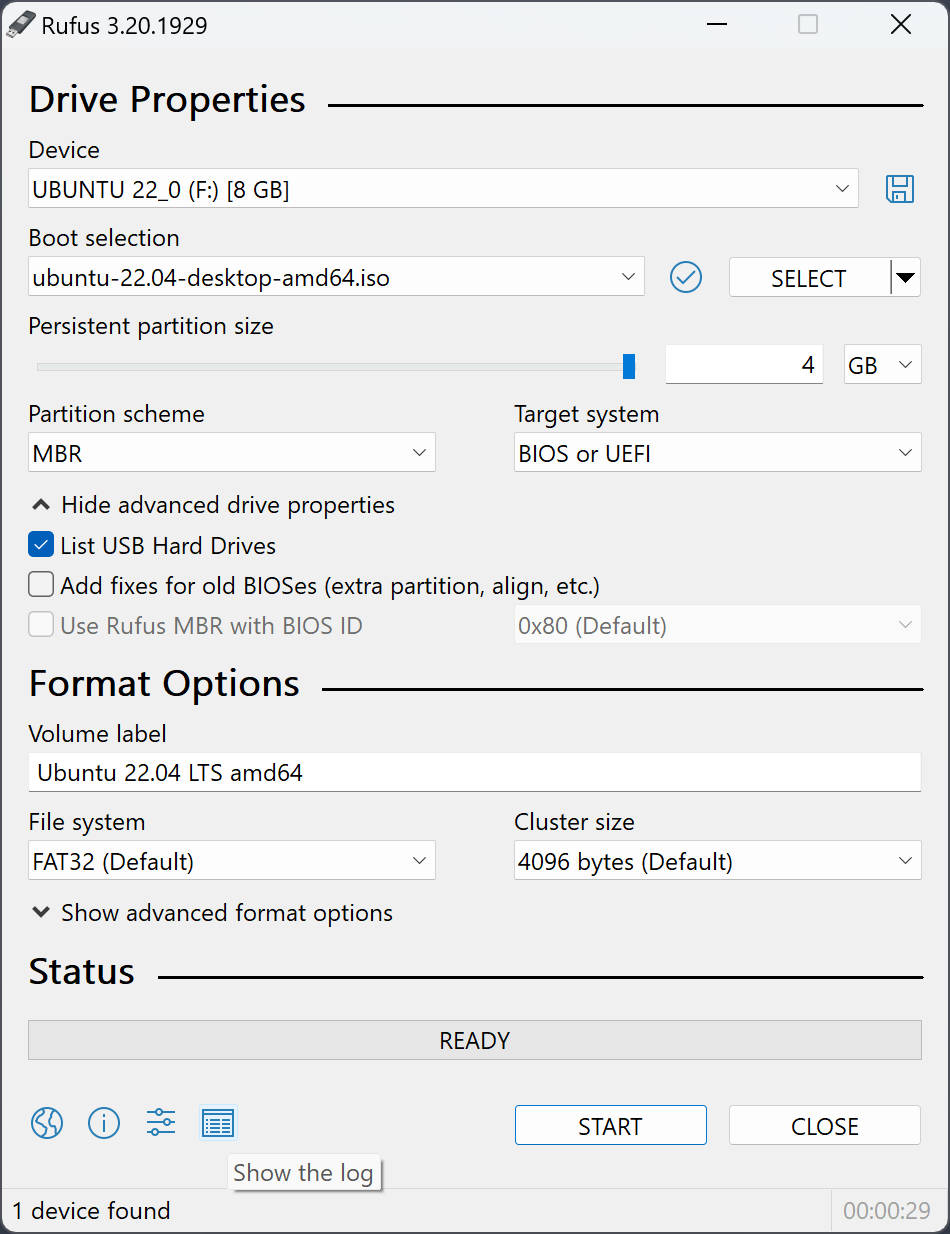
Under "Boot selection", click the SELECT button and browse to your Windows 11 ISO file. Once selected, Rufus automatically configures the recommended settings:
- Partition scheme: GPT
- Target system: UEFI (non CSM)
- File system: FAT32
- Cluster size: 16 kilobytes (default)
These settings are correct for all modern PCs with UEFI firmware (any PC from ~2012 onward). Leave them as Rufus configured them unless you specifically need Legacy BIOS support.
Step 5: Enable TPM Bypass (If Needed)
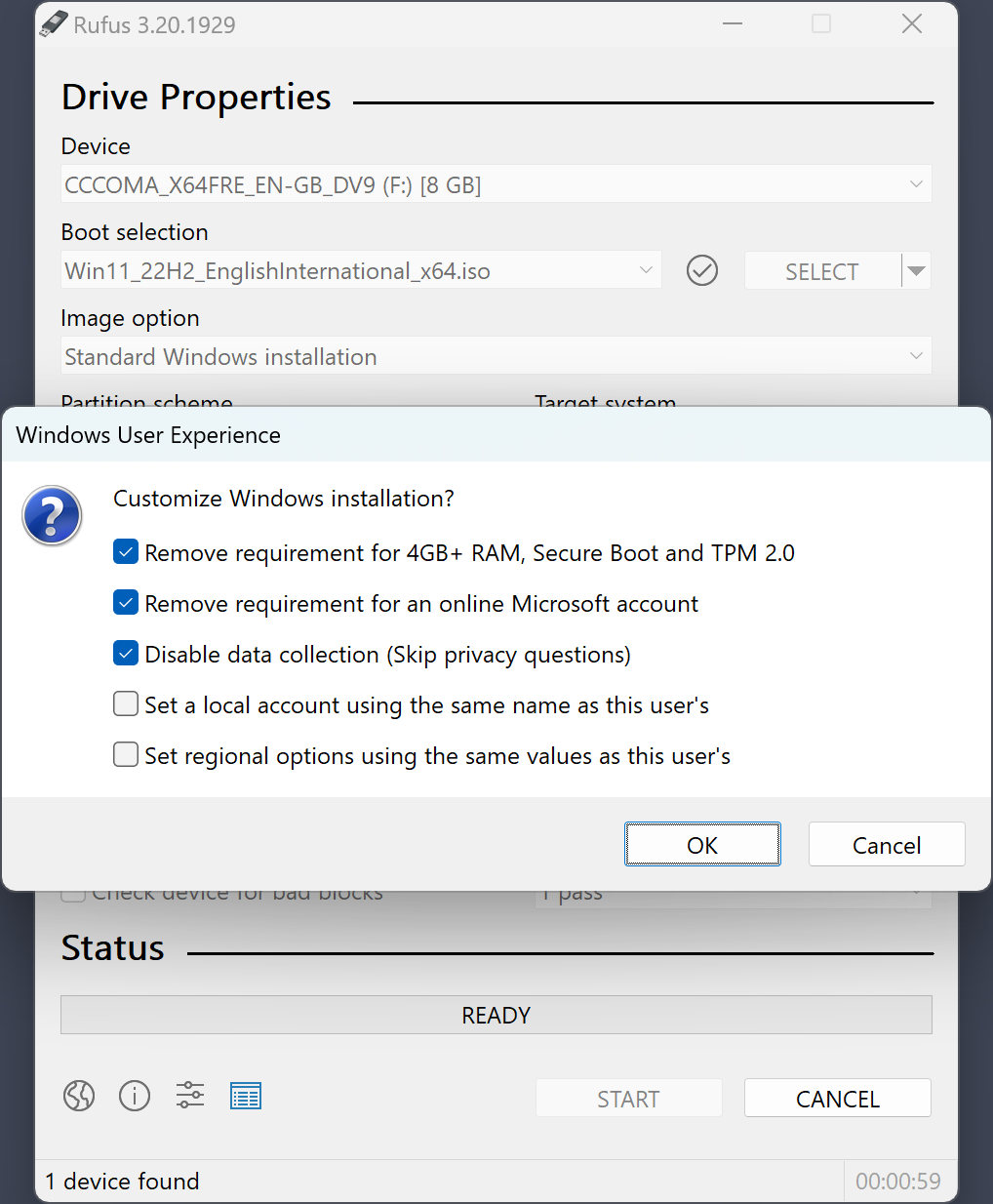
After selecting the Windows 11 ISO, Rufus shows a "Windows User Experience" dialog. This is where you configure the TPM bypass.
Change "Image option" from "Standard Windows 11 Installation" to:
Extended Windows 11 Installation (no TPM / no Secure Boot / 8GB- RAM)
With this option, you can also check:
- Remove requirement for an online Microsoft account — forces local account creation during setup
- Disable data collection (Skip privacy questions) — skips telemetry setup screens
Click OK after making your selections.
When should you use Extended Windows 11 Installation?
Use it if your PC doesn't have TPM 2.0 or Secure Boot — common on PCs made before 2017. Also useful if you want a local account instead of forcing a Microsoft account login during setup. It's also safe to use on supported hardware — it doesn't negatively affect PCs that already meet requirements.
Step 6: Click START
Click the START button at the bottom of Rufus. A warning appears: "All data on the USB drive will be destroyed." Click OK to confirm.
Rufus begins writing the Windows 11 bootable USB. The progress bar fills from left to right:
- First pass: formats the USB and writes the bootable boot sector
- Second pass: copies all Windows 11 installation files
- Final: verifies the write (if enabled)
On a USB 3.0 drive: 10–15 minutes. On USB 2.0: up to 30 minutes. When Rufus shows "READY" in green, your Windows 11 bootable USB is complete.
Step 7: Boot from the USB Drive
With your Windows 11 USB ready, it's time to boot from it:
- Keep the USB drive plugged in and restart your PC
- As the PC starts up, press the boot menu key repeatedly — usually F12, F2, F10, Del, or Esc depending on your motherboard brand
- Select your USB drive from the boot menu (it shows the USB brand name)
- If you see "Press any key to boot from USB..." — press any key immediately
Common boot menu keys by manufacturer
- Dell: F12
- HP: F9 or Esc
- Lenovo: F12 or Fn+F12
- ASUS: F8 or Esc
- MSI: F11
- Gigabyte: F12
- Acer: F12 or Esc
Step 8: Install Windows 11 — Final Step
The Windows 11 setup wizard loads. Follow the on-screen steps:
- Select language, time, and keyboard layout → Click Next
- Click Install now
- Enter your Windows product key (or click "I don't have a product key" to activate later)
- Select Windows 11 edition (Home or Pro, matching your license)
- Accept the license terms
- Choose Custom: Install Windows only for a clean install
- Select the drive/partition to install Windows 11 on
- Wait ~20 minutes for installation to complete
After installation, Windows 11 restarts and guides you through initial setup — account creation, privacy settings, and personalization. If you enabled "Remove requirement for Microsoft account" in Rufus, you can create a local account when asked for a Microsoft account by selecting "I don't have internet" or "Continue with limited setup".
Troubleshooting Common Issues
USB not showing in boot menu
If your USB drive doesn't appear in the boot menu: (1) Make sure USB is fully inserted. (2) Try a different USB port — use the rear ports on desktops. (3) Check if Secure Boot is blocking it — disable Secure Boot in BIOS. (4) Check that UEFI boot is enabled (not Legacy only).
Windows 11 setup says "This PC doesn't meet requirements"
You didn't use the Extended Windows 11 Installation option in Rufus. Close setup, go back to Rufus, recreate the bootable USB with Extended Windows 11 Installation enabled (Step 5), and try again.
Setup is very slow or freezes
Slow Windows 11 installation usually means a slow USB drive (USB 2.0 or a cheap USB 3.0 drive with low write speed). The install can still complete — it may take 40–60 minutes on a slow USB 2.0 drive. Let it run without interrupting.
📋 Quick Summary
- Download Windows 11 ISO
- Download & open Rufus
- Insert USB drive (8 GB+)
- Select Windows 11 ISO
- Enable TPM bypass (optional)
- Click START → wait 15 min
- Boot from USB (F12)
- Install Windows 11
⏱️ Total Time
~20–30 min to create bootable USB
~20–40 min to install Windows 11
Total: ~45–70 minutes