Rufus 4.13 · Free · Windows 10 & 11

Create a Bootable Flash Drive
with Rufus — Free & Fast

Rufus turns any USB flash drive into a bootable drive in minutes. Windows 11, Windows 10, Linux, UEFI recovery — Rufus handles it all with one click. Completely free.

What Makes a Flash Drive Bootable?

A regular USB flash drive stores files. A bootable flash drive contains a complete operating system or installer that your PC can load before Windows starts. Creating one requires writing the ISO image in a specific way — and that's exactly what Rufus does.

Rufus writes the ISO to your flash drive using the correct partition scheme (GPT or MBR), file system (FAT32 or NTFS), and boot sector — all configured automatically based on your chosen ISO. The result is a properly bootable flash drive that works on both UEFI and legacy BIOS systems.

What you can do with a Rufus bootable flash drive

  • Install Windows 11 or 10 on a new or wiped PC
  • Run Linux live without installing — test Ubuntu, Fedora, Tails
  • Recover a broken Windows using repair tools
  • Flash BIOS firmware using a DOS bootable flash drive
  • Run diagnostic tools like Memtest86 or GParted
  • Deploy OS images across multiple PCs quickly
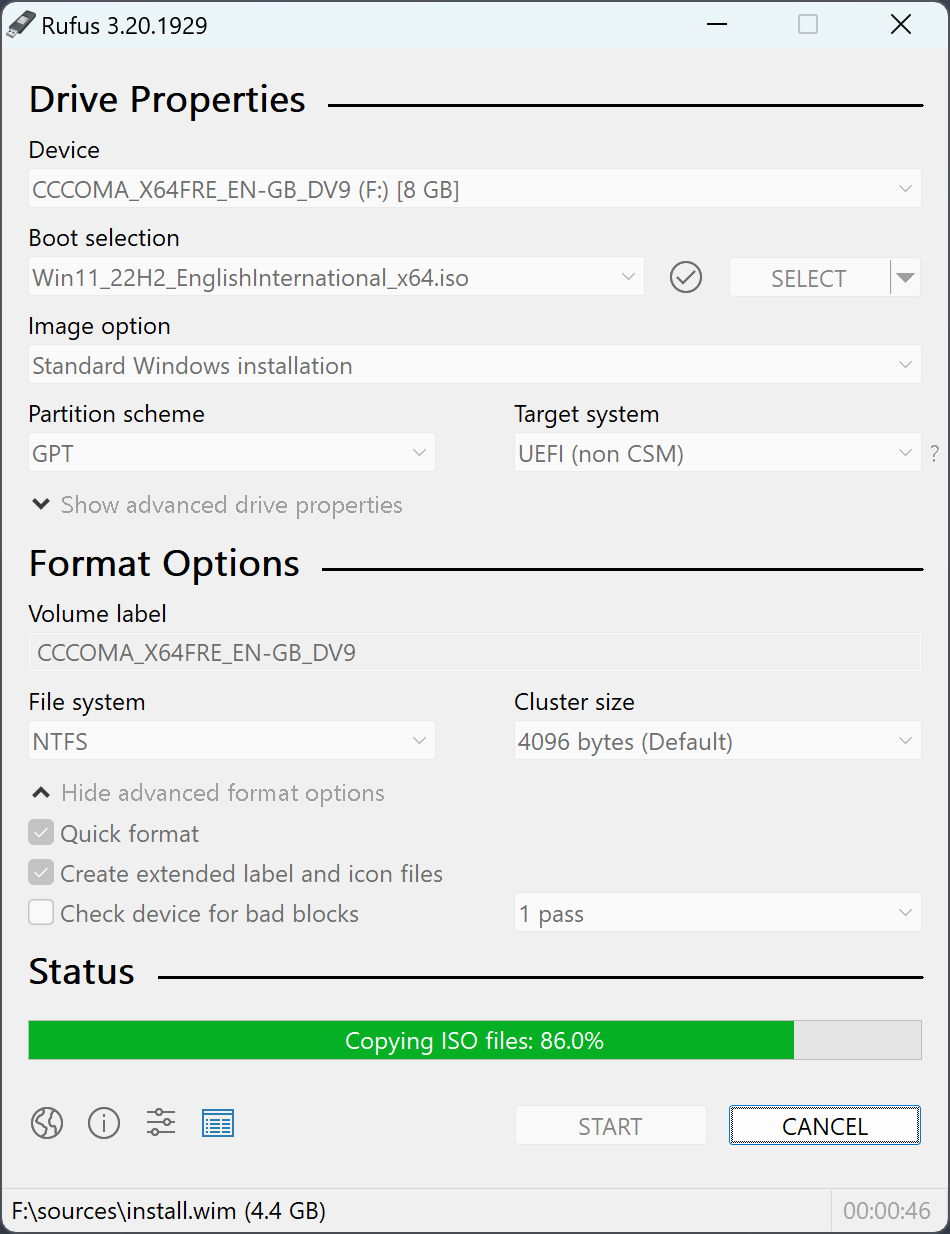
Rufus creating a bootable flash drive from Windows 11 ISO

Choosing the Right USB for Rufus Bootable Flash Drive

Not all USB flash drives are created equal. Here's what matters when choosing a flash drive for bootable USB creation with Rufus.

Minimum Size Requirements

Windows 11 or Windows 10: 8 GB minimum, 16 GB recommended. Ubuntu / Fedora / Debian: 4 GB minimum. BIOS tools and recovery: 1–2 GB is usually enough. Always buy a bit bigger than the minimum.

USB 3.0 vs USB 2.0 Speed

USB 3.0 flash drives create bootable drives 3–5x faster than USB 2.0. A Windows 11 bootable USB takes ~8 minutes on USB 3.0 vs ~25 minutes on USB 2.0. Look for drives with blue-coloured USB connectors — that indicates USB 3.0.

Recommended Flash Drive Brands

All major brands work with Rufus: SanDisk Ultra (fastest value), Kingston DataTraveler (reliable), Samsung FIT (compact), Corsair Flash Voyager (durable). Avoid very cheap no-name drives — they're often slower and less reliable.

Reusing Your Flash Drive

Any flash drive used with Rufus can be reused — just run Rufus again with a different ISO. Rufus will erase the previous content and write the new bootable image. There's no limit on how many times you can reuse the same drive.

How to Create a Rufus Bootable Flash Drive

Creating a Rufus bootable flash drive takes 4 simple steps:

1

Download Rufus (Free)

Download Rufus 4.13 — just 1.9 MB, no installation required. Run rufus-4.13.exe directly after download.

2

Plug in Your USB Flash Drive

Insert your USB flash drive (8 GB+ for Windows). Rufus detects it automatically under "Device". Back up any files on the drive first — Rufus will format it completely.

3

Select Your ISO Image

Click "SELECT" and browse to your ISO file. Rufus auto-configures the optimal partition scheme and file system for your ISO. For Windows 11, it sets GPT + FAT32. For most Linux ISOs, it selects the same.

4

Click START — Done in 10 Minutes

Click START and confirm the drive erasure warning. Rufus creates your bootable flash drive and shows "READY" when complete. Eject the drive safely and you're done.

Download Rufus & Create Bootable Flash Drive →

ISOs Supported for Rufus Bootable Flash Drive

Rufus creates bootable flash drives from a wide range of ISO images. Here are the most popular categories:

🪟 Windows Bootable USB

  • Windows 11 (all editions)
  • Windows 10 (all editions)
  • Windows PE recovery
  • Windows Server 2022/2025
Windows 11 guide →

🐧 Linux Bootable Flash Drive

  • Ubuntu 24.04 LTS
  • Fedora 41
  • Debian 12
  • Arch Linux, Kali, Tails

🛠️ Recovery & Tools

  • Hiren's BootCD PE
  • Clonezilla
  • GParted Live
  • Memtest86

Bootable Flash Drive with Rufus — FAQ

Everything you need to know about USB flash drives and bootable USB creation.

What USB flash drive size do I need for Rufus?
For Windows 11 or Windows 10: minimum 8 GB, 16 GB recommended.
For Ubuntu / Fedora / Debian: 4 GB is usually enough, 8 GB recommended.
For Kali Linux / Tails: 8 GB recommended (these live systems expand on first boot).
For BIOS tools, recovery utilities: 1–2 GB is sufficient.
When in doubt, buy 16 GB — USB 3.0 drives are cheap and you'll reuse it many times.
Does Rufus work with any USB flash drive brand?
Yes. Rufus works with all major brands — SanDisk, Kingston, Samsung, Lexar, PNY, Corsair, and Transcend. Brand matters less than USB version and speed: look for USB 3.0 (blue connector) drives with write speeds of 20+ MB/s. Avoid very cheap no-name drives — they often have unreliable write performance that causes boot failures.
Can I use the same flash drive for multiple bootable ISOs?
Not simultaneously on a single drive — each Rufus session formats the entire flash drive for one ISO. However, you can reuse the same flash drive unlimited times by running Rufus again with a different ISO. The process takes only minutes. Consider keeping a dedicated 32 GB drive for bootable images — you can switch between Windows, Ubuntu, and recovery tools as needed.
Why is my Rufus bootable flash drive not booting?
Most common causes and fixes:
Wrong boot mode: If USB was created for UEFI, your PC must boot in UEFI mode (not Legacy). Check BIOS.
Secure Boot blocking: Disable Secure Boot in BIOS settings for Linux ISOs.
Wrong USB selected: In the boot menu (F12), select the USB drive by its brand name, not a generic "USB" option.
Corrupted ISO: Re-download the ISO and verify its checksum, then recreate the bootable flash drive.
How long does Rufus take to create a bootable flash drive?
Depends on USB version and drive speed:
USB 3.0 (20+ MB/s write): Windows 11 ~8 min, Ubuntu ~5 min, small tools ~2 min.
USB 2.0: 3–4x longer — Windows 11 ~25 min, Ubuntu ~15 min.
Fast USB 3.1/3.2 drives (100+ MB/s): Windows 11 in under 5 minutes.
The bottleneck is almost always the flash drive write speed, not your PC.
Can I create a bootable flash drive without an ISO file?
Rufus requires an ISO image (or a virtual disk image like IMG) as its source. You cannot create a bootable flash drive directly from installation files or a folder. To get an ISO: download Windows 11/10 ISOs directly from Microsoft, Linux ISOs from their official websites, or use the Windows Media Creation Tool to download and convert to ISO format.
What is the difference between DD mode and ISO mode in Rufus?
ISO mode (default): Rufus extracts and writes the ISO contents, letting you configure partition scheme and file system. Works for most Windows and some Linux ISOs.

DD image mode: Rufus writes the ISO as a raw disk image, preserving the exact byte-for-byte layout. Required for some Linux ISOs (like Ubuntu on certain hardware), FreeBSD, and other OS images that use non-standard boot structures. Rufus recommends DD mode automatically when an ISO requires it.

Create a Rufus Bootable Flash Drive Now

Download Rufus free and make any USB flash drive bootable in minutes.

Download Rufus Free →