Guide · All ISO types covered

ISO to USB
— Turn Any ISO Into a Bootable Stick

An ISO file is a single archive of a bootable disc. A USB stick out of the box is not bootable. Getting from one to the other is the whole job Rufus exists to do.

What Counts as an ISO?

A .iso file is a bit-for-bit copy of a disc's filesystem. Linux distributions ship them routinely. Windows Setup media is distributed as ISO. So are Memtest86, Hiren's Boot CD, GParted Live, and most BIOS update utilities.

If a file ends in .iso and weighs a few hundred megabytes or more, Rufus can probably write it.

Other formats Rufus handles

  • .img — raw disk images
  • .dd — dd-format dumps
  • .vhd — Virtual Hard Disk
  • .gz / .bz2 / .xz / .zip — auto-extracted
Rufus ISO selection dialog showing boot image file picker
What you will need:
  • ✓ Rufus 4.13 — 1.9 MB
  • ✓ A USB stick — 8 GB min, 16 GB for Windows 11
  • ✓ Source ISO file
  • ✓ 10–15 minutes

The Conversion — 6 Steps

Start to finish: Rufus opens, you pick the ISO, you boot.

1

Get Rufus

Single .exe file. Download Rufus 4.13 — 1.9 MB, no installation required.

2

Plug in a USB stick

8 GB or larger for most Linux distros. 16 GB recommended for Windows 11. Everything on the stick will be erased — back it up first if there is anything valuable on it.

3

Open Rufus, select the ISO

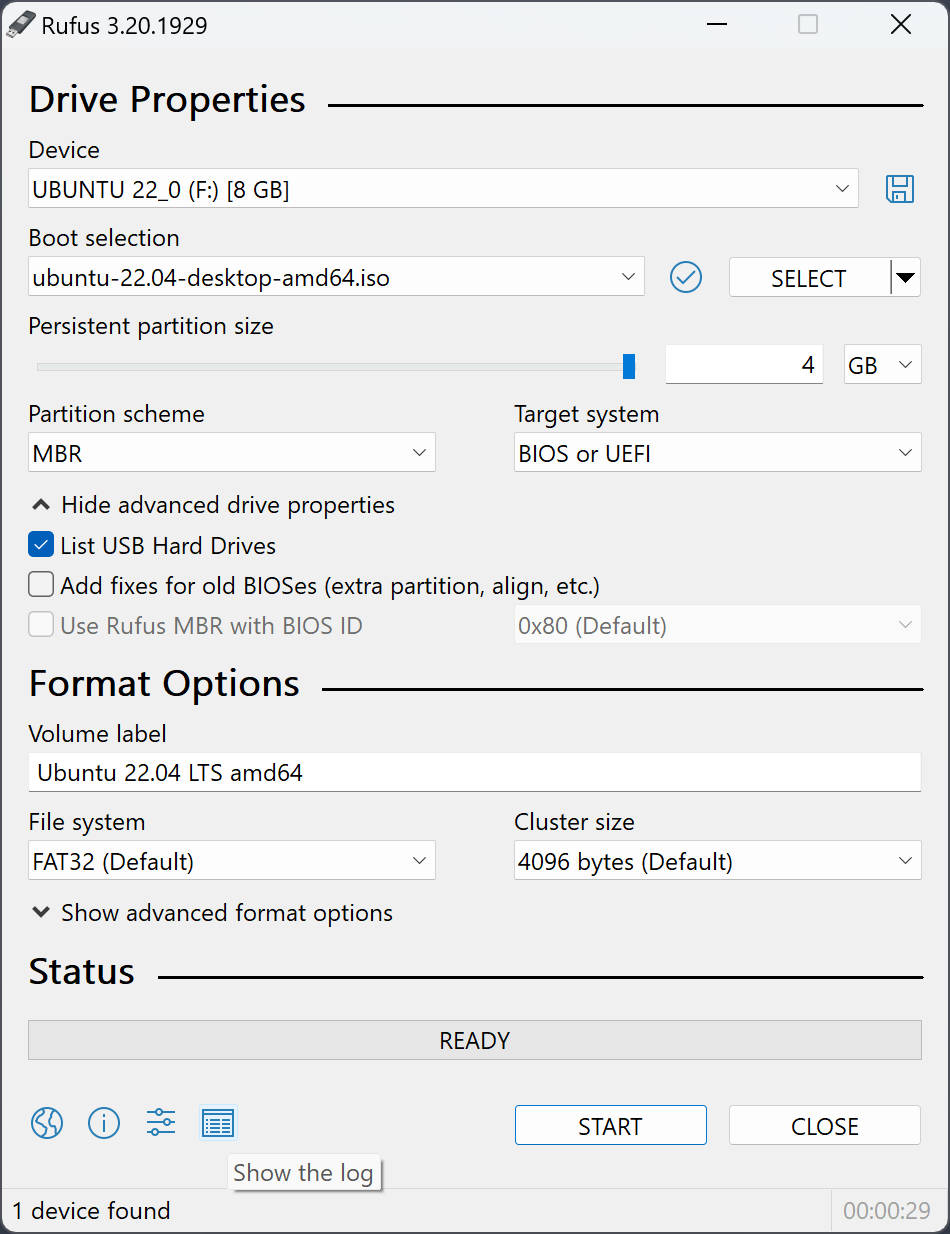
Run rufus-4.13.exe. Under Device, verify your USB is selected. Click SELECT and choose your ISO.

4

Let Rufus pick the boot settings

Rufus reads the ISO and fills in Partition scheme, Target system, File system and Cluster size automatically. 95 % of the time the defaults are right. The only common manual change is switching to MBR for a very old BIOS-only machine.

5

Start

Click START. Confirm the "all data will be erased" warning. Rufus writes the bootable image — a green progress bar fills from left to right.

USB 3.0 sticks finish a 5 GB ISO in 7–10 minutes. Cheap USB 2.0 drives can take half an hour.

6

Boot

Plug into the target machine, tap the boot-menu key during POST (F12, F10, Esc are the usual three), pick the USB. You are in.

Special ISO Types

Not every ISO is the same. Here is what Rufus does differently for each.

Windows 10 / 11 ISO

Rufus detects Windows installers and offers the User Experience dialog — TPM bypass, local account bypass, the whole set. See our Windows 11 without TPM page.

Linux live ISOs with persistence

For Ubuntu, Mint and other Debian-derivative live images, Rufus shows a Persistent partition size slider. Anything above 0 gives the live system a writable layer that survives reboots.

BIOS update ISOs

Usually tiny (under 50 MB), booted in DOS mode. Rufus detects the DOS format and writes the USB accordingly. Pair with FAT32 if the vendor tool needs it.

Multi-bootable ISOs

Rufus makes one-ISO-per-stick drives. If you want several ISOs on one stick with a chooser menu, use Ventoy instead — separate tool for a different model.

Common Mistakes

❌ Using a USB hub

Some hubs do not handle the low-level commands Rufus sends. Plug direct into a motherboard port for the write step. Move back to the hub once Rufus finishes.

❌ Running on battery

Writing a big ISO takes real power. A laptop that suspends halfway leaves you with a half-formatted stick. Plug in the charger.

❌ Copying the ISO onto the stick

Dragging the ISO file onto the USB does not make it bootable. Rufus extracts the contents into a boot-ready layout — that is the whole point.

❌ Wrong partition scheme

UEFI with Secure Boot → GPT. Pre-2012 BIOS-only machine → MBR. Rufus usually guesses right. See our MBR vs GPT page if you want to understand the options.

Download Rufus 4.13 →

ISO to USB — Common Questions

Can Rufus write any ISO?
Almost. Rufus handles the standard ISO 9660 format plus UDF hybrid images. A handful of exotic or copy-protected discs will not work — in practice this only matters for very old games and some commercial recovery media.
What size USB do I need for a Windows 11 ISO?
At least 8 GB, but 16 GB is the practical minimum. Modern Windows ISOs have an install.wim that can exceed 4 GB, which needs NTFS or a split on FAT32.
Will Rufus keep files already on my USB?
No. Writing to the USB erases it completely. Back up anything important first.
How long does it take?
7–10 minutes for a 5 GB ISO on a good USB 3.0 stick. Up to half an hour for older cheap USB 2.0 drives. The bottleneck is almost always the USB stick's write speed, not Rufus.
Do I need admin rights?
Yes. Rufus writes at the partition level, which requires administrator privileges. The UAC prompt appears when you launch the .exe.

Got an ISO? Rufus writes it to USB fast.

Free, 1.9 MB, portable. Works for every ISO format in common use.

Download Rufus 4.13 →