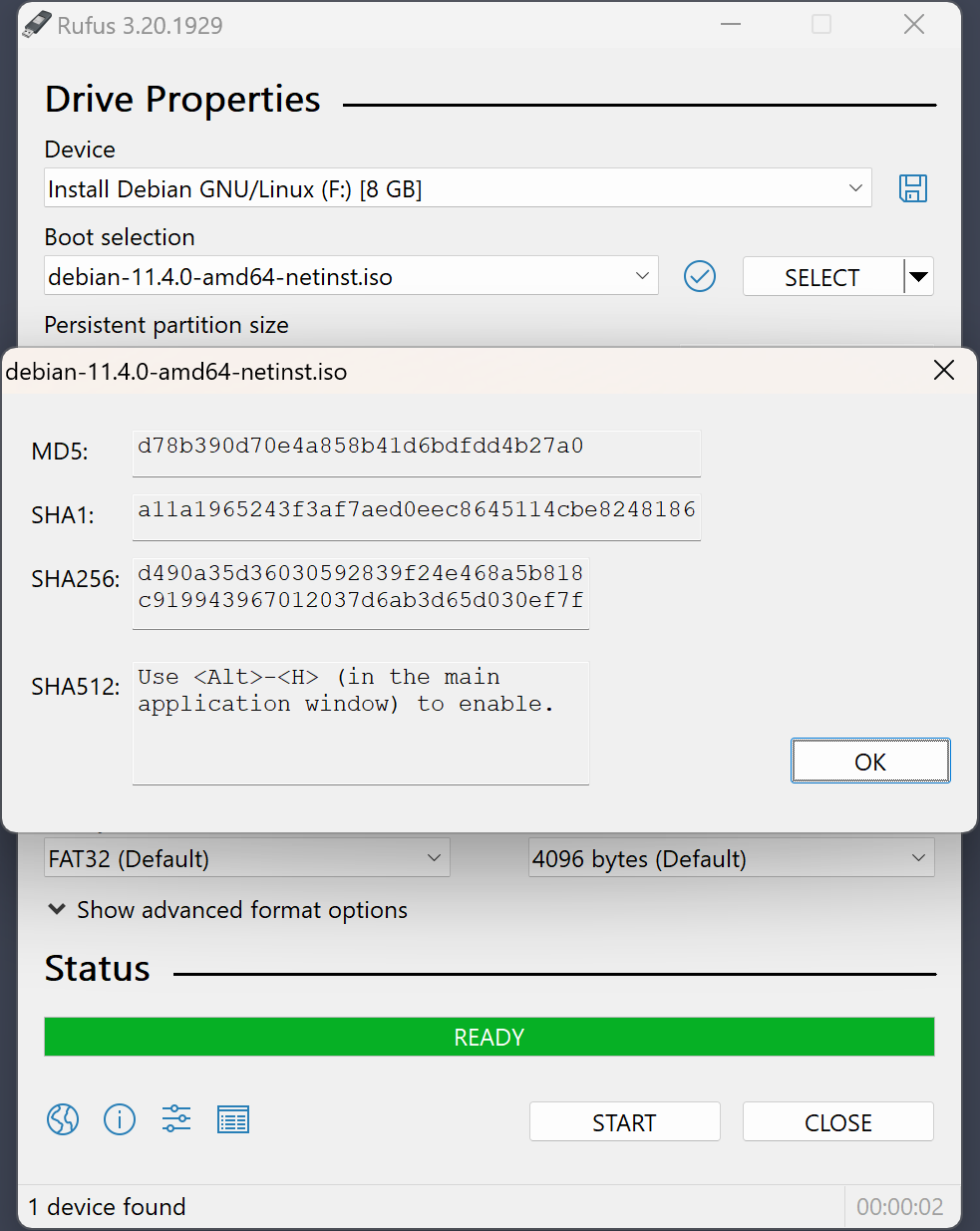
Explainer · Rufus 4.13 settings

MBR vs GPT
— The Rufus Partition Scheme, Explained

Rufus asks you to pick between two partition schemes and two target systems. Most of the time the defaults work, but when they do not, knowing what the options mean saves an hour of trial-and-error reboots.

The Two Words in Plain Language

MBR (Master Boot Record) — the older partitioning format from the early 1980s. Every PC supports it. Limits: up to 4 primary partitions, maximum 2 TB disk size.

GPT (GUID Partition Table) — the modern replacement that ships with UEFI firmware. Up to 128 partitions, disks up to 9.4 ZB, backup copy of the partition table at the end of the disk for resilience.

The Rufus Partition scheme dropdown is where you pick one. The Target system dropdown then narrows based on your choice.
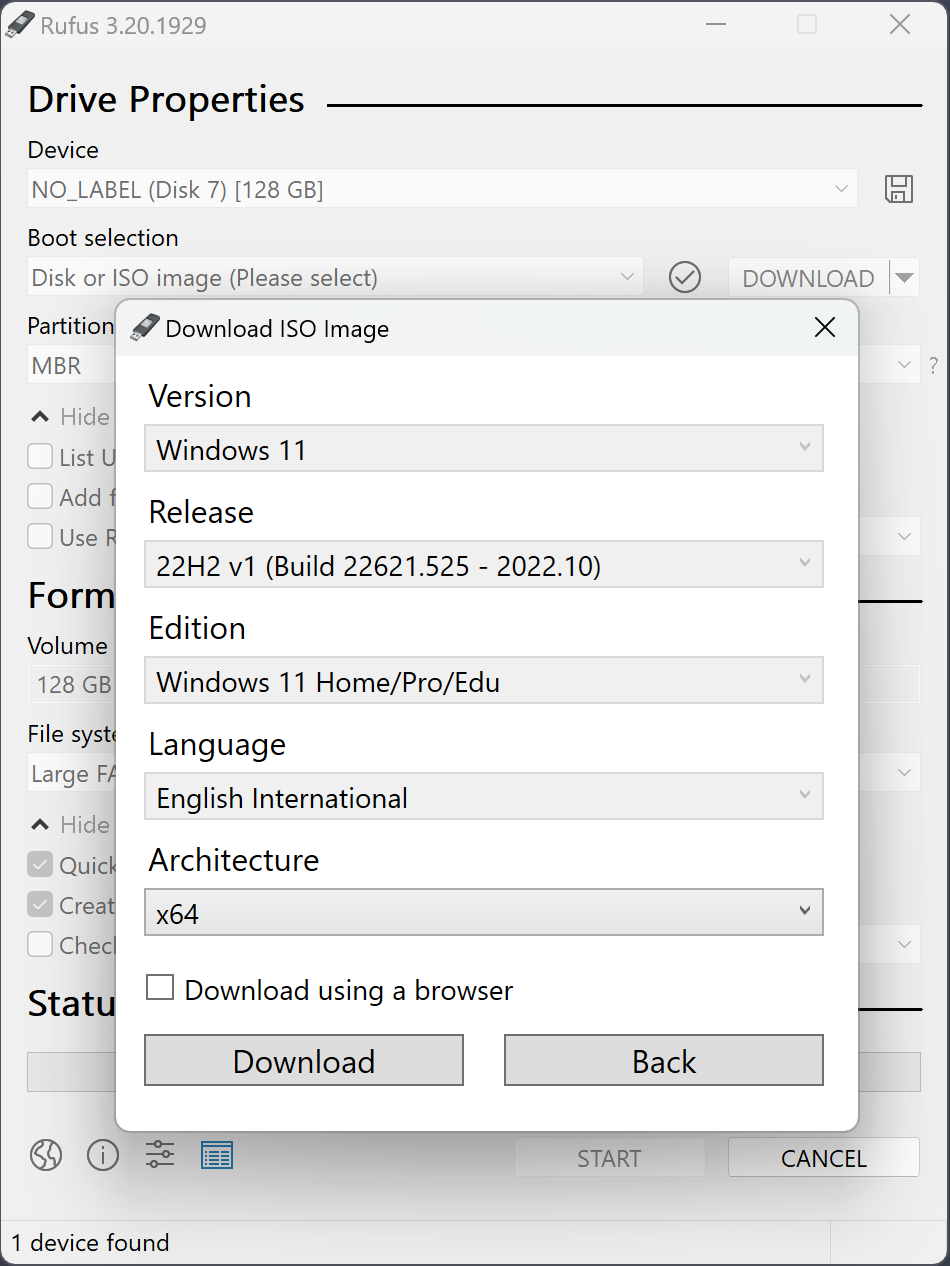
Rufus partition scheme MBR GPT dropdown and target system UEFI BIOS selection
Rule of thumb:
  • ✓ Any PC from 2012+ → GPT
  • ✓ Windows 11 target → GPT
  • ✓ Pre-2012 BIOS PC → MBR
  • ✓ DOS utility USB → MBR

When to Pick Which

Pick GPT if…

  • The target PC is from 2012 or later
  • You see "UEFI" in the boot menu during POST
  • You are installing Windows 10 or 11 with Secure Boot
  • The ISO is 64-bit (modern Windows, modern Linux)
  • You need a disk larger than 2 TB

Pick MBR if…

  • The target PC is pre-2012 with classic BIOS
  • The boot menu does not mention UEFI
  • You are installing a 32-bit operating system
  • You are making a DOS utility USB
  • Target has "Legacy" or "CSM" boot mode set

Pairing With the "Target System" Dropdown

Picking a partition scheme automatically limits the Target system options.

Partition schemeTarget systemTypical use
GPTUEFI (non-CSM)Modern Windows 11 install
MBRBIOS or UEFIUniversal stick, boots on both older and some newer PCs
MBRBIOS (or UEFI-CSM)Legacy BIOS-only machines

The MBR + "BIOS or UEFI" combination is the most compatible — the resulting stick boots on almost anything. The downside: Secure Boot must be off on UEFI machines for it to work.

File System Choice Follows From Partition Scheme

GPT + FAT32

Standard for modern UEFI Windows/Linux installs. Limit: files over 4 GB need special handling. Rufus automatically splits large install.wim files or switches to NTFS with a UEFI shim.

MBR + NTFS

The "just works" combination when file size matters and UEFI compatibility is not required. Supports individual files up to 16 exabytes.

GPT + NTFS (UEFI shim)

Rufus offers this for Windows 11 ISOs with large install.wim. Strictly it needs a small UEFI:NTFS driver injected — Rufus handles that behind the scenes.

FAT32 4 GB limit

The original FAT32 cannot store files larger than 4 GB. If your ISO has a single file over 4 GB (most recent Windows 11 ISOs do), Rufus warns and offers to split or switch.

How to Tell What Mode Your PC Uses

Boot the target PC into its existing Windows install and run:

msinfo32

In the summary, look for BIOS Mode. It says either Legacy (= use MBR) or UEFI (= use GPT).

If the target has no working OS, enter the BIOS setup screen at boot and look for a "Boot Mode" or "CSM" setting — that tells you which side of the line the machine is on.

Rufus boot selection showing MBR vs GPT partition scheme for bootable USB
Tip: Rufus auto-detects the right combination from the ISO 95% of the time. Only override when you know the target is older than 2012 or your UEFI firmware is especially picky.

Common Mistakes

❌ GPT + BIOS-only PC

The stick will not appear in the boot menu. Rebuild with MBR.

❌ MBR + UEFI with Secure Boot on

Either switch Secure Boot off in BIOS, or rebuild with GPT. Secure Boot is a UEFI-only feature.

❌ FAT32 split of install.wim

Works in most cases, but some UEFI implementations hiccup on the split. Use NTFS if you hit odd errors at the first reboot into Windows setup.

❌ Ignoring the target system row

Partition scheme alone is not enough. The Target system field must match — UEFI (non-CSM) for modern GPT, BIOS for Legacy MBR.

Download Rufus 4.13 →

MBR vs GPT — Common Questions

Does Windows 11 require GPT?
Yes. Windows 11 officially requires UEFI + GPT. Rufus handles this automatically when you select a Windows 11 ISO.
Can I change MBR to GPT without reinstalling?
Yes — Windows 10 1703+ ships with the mbr2gpt tool. But it converts an installed system's disk, not the Rufus bootable USB. For Rufus, just re-flash with the right scheme.
Is GPT always better than MBR?
For any modern system, yes. MBR only wins on pre-2012 BIOS hardware or for DOS utilities that specifically require it.
What happens if I pick the wrong partition scheme?
The USB either fails to appear in the boot menu, or starts booting then falls back to the internal disk. It will not damage anything — just reflash with Rufus and try the other option.
Do Linux live ISOs need GPT or MBR?
Most modern Linux distros work with either. MBR + BIOS/UEFI is the most universal setting for Linux live sticks, but GPT + UEFI is fine for Linux on modern hardware.

Pick the right scheme, flash with confidence

Rufus 4.13 auto-detects the correct combo for 95% of ISOs. Free, 1.9 MB, portable.

Download Rufus 4.13 →