Use Rufus to create a Windows 11 bootable USB drive in minutes. Includes the Extended Windows 11 Installation option to bypass TPM 2.0, Secure Boot, and RAM requirements on older hardware.
Creating a Windows 11 bootable USB with Rufus is the fastest and most flexible method available. Unlike the official Microsoft Media Creation Tool, Rufus gives you full control over partition scheme, file system, and — most importantly — hardware compatibility checks.
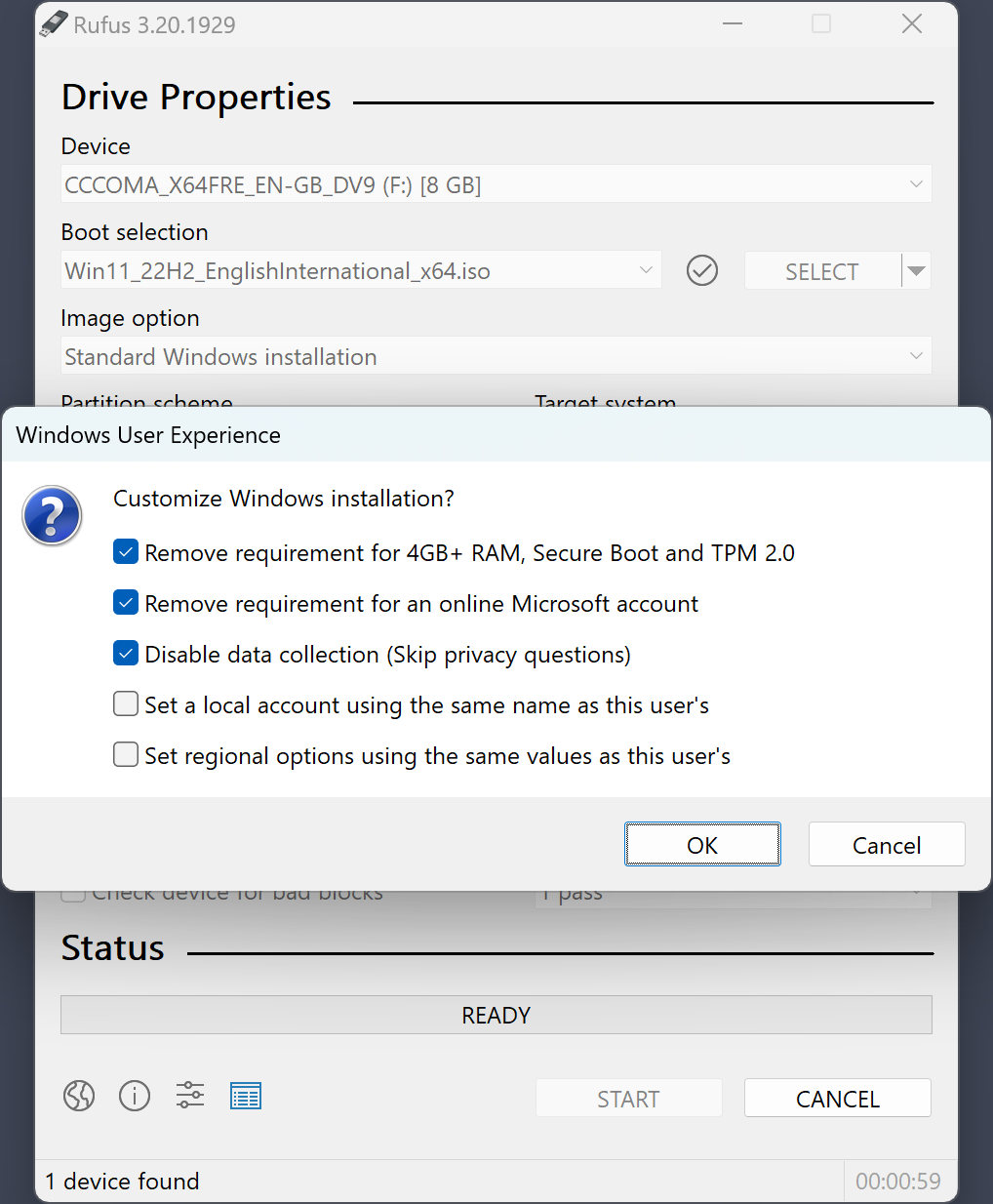
The standout feature of Rufus for Windows 11 is the Extended Windows 11 Installation option. When you select a Windows 11 ISO, Rufus automatically asks if you want to remove the TPM 2.0, Secure Boot, and RAM requirements. This is completely legal and allows installation on older hardware that Microsoft officially doesn't support.
Follow these steps to create a Rufus Windows 11 bootable USB, with or without TPM 2.0 bypass.
Go to Microsoft's Windows 11 download page and download the Windows 11 Disk Image (ISO). Choose your language and click Confirm. The ISO is typically 5–6 GB.
Download Rufus 4.13 from our download page. Run rufus-4.13.exe — no installation needed. Accept the UAC prompt (administrator rights needed to write to USB).
Plug in your USB drive (8 GB minimum). Rufus detects it automatically and shows it under "Device". Warning: all data on the USB will be erased — back up anything important before proceeding.
Under "Boot selection", click SELECT and choose the Windows 11 ISO you downloaded. Rufus automatically sets the Image Option to "Standard Windows 11 Installation" and configures GPT + FAT32 for UEFI.
Change Image Option from "Standard Windows 11 Installation" to "Extended Windows 11 Installation (no TPM / no Secure Boot / 8 GB- RAM)". This removes all hardware requirement checks, allowing installation on any PC.
Click START. Confirm the warning that the USB drive will be erased. Rufus takes 10–15 minutes to create your Windows 11 bootable USB. When the progress bar shows "READY", your bootable USB is complete.
Restart your PC. Enter BIOS/UEFI boot menu (usually F12, F2, Del, or Esc on startup). Select your USB drive as boot device. Windows 11 setup loads and guides you through installation.
Understanding the right Rufus settings for Windows 11 ensures your bootable USB works correctly on your hardware.
Use GPT for all modern PCs with UEFI firmware (any PC from ~2012 onward). Use MBR only for very old PCs with legacy BIOS. GPT + UEFI is required for full Windows 11 compatibility.
Rufus sets FAT32 automatically for UEFI Windows 11 installation — this is correct. FAT32 is required for UEFI boot. Note: this limits individual files to 4 GB, but the Windows 11 ISO is split automatically by Rufus.
Select UEFI (non CSM) for modern PCs with UEFI firmware. This is the standard for Windows 11. Use BIOS (or UEFI-CSM) only if you're installing on very old hardware without UEFI support.
This Rufus-exclusive option removes TPM 2.0, Secure Boot, and RAM checks from the Windows 11 installer. It also adds options to require a local account and disable data collection. Highly recommended for older hardware.
Leave at default (Rufus sets this automatically based on file system and USB size). Changing cluster size only matters for advanced use cases like specific forensic or recovery tools.
The volume label is the name of your USB drive as it appears in Windows Explorer. For Windows 11 bootable USB, Rufus sets it automatically. You can change it freely — it doesn't affect bootability.
Common questions about creating Windows 11 bootable USB with Rufus.