Guide · Rufus 4.13 · Windows 11 24H2

Install Windows 11
on a PC Without TPM

Microsoft's hardware rules keep millions of perfectly capable PCs off Windows 11. Rufus bundles a legitimate workaround in its image preparation dialog — no scripts, no registry edits, one checkbox.

What Rufus Can Bypass

  • TPM 2.0 requirement — Rufus patches the installer to skip the check
  • Secure Boot requirement — same patch disables the gate
  • 8 GB RAM minimum — works on 4 GB machines
  • Microsoft account during setup — lets you finish with a local account
  • BitLocker auto-encryption — disables on new installs

All four toggles sit on one screen inside Rufus. Nothing you need to type in PowerShell.
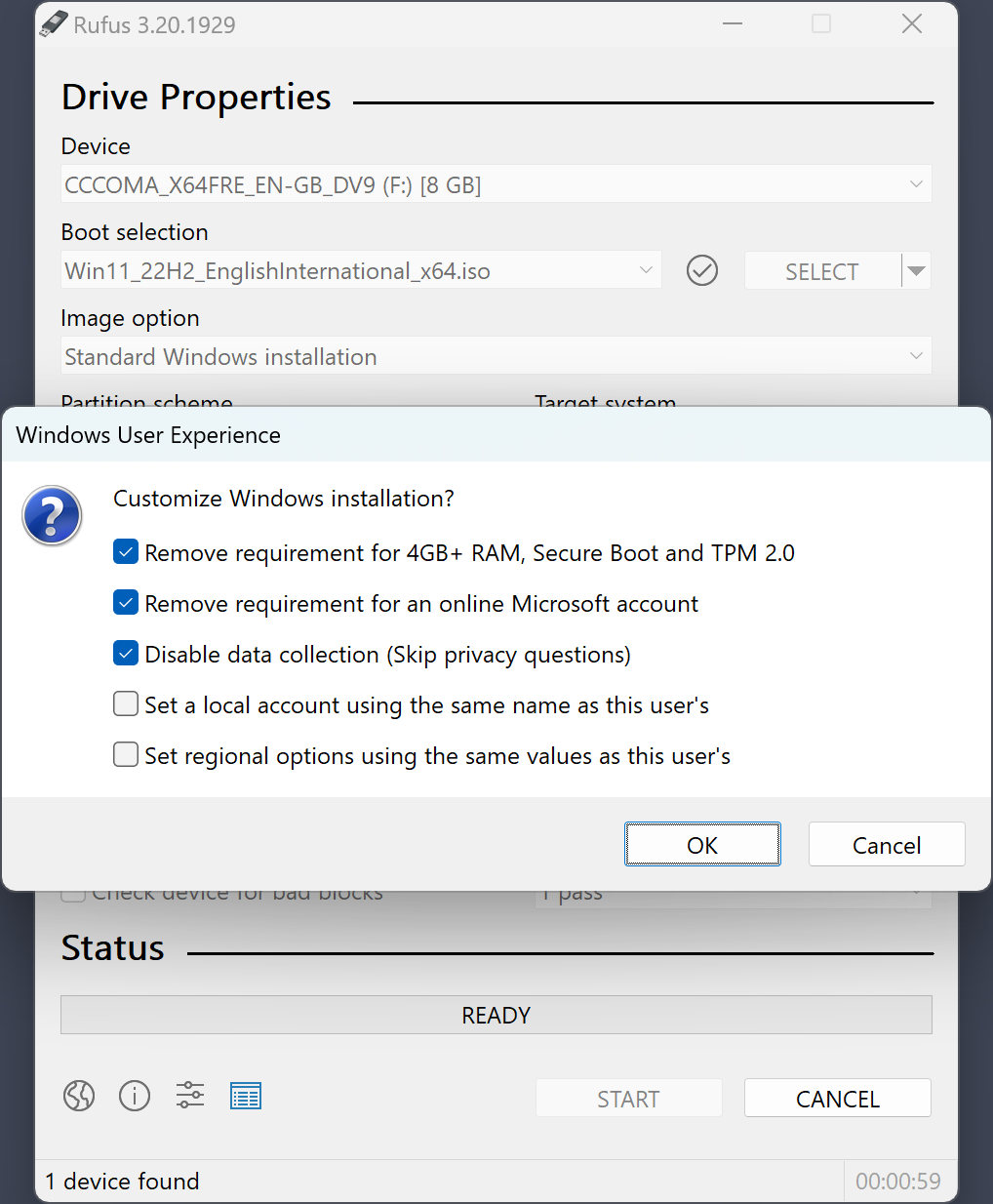
Rufus Extended Windows 11 Installation dialog with TPM and Secure Boot bypass checkboxes
What you will need:
  • ✓ Rufus 4.13 (free, 1.9 MB)
  • ✓ Windows 11 ISO from Microsoft
  • ✓ USB stick — minimum 16 GB
  • ✓ A Windows PC to run Rufus on
  • ✓ About 20 minutes total

Step-by-Step — 7 Steps

Start to finish: download ISO → flash USB → boot target PC → install Windows 11.

1

Download the Windows 11 ISO

Go to Microsoft's Windows 11 download page and grab the Windows 11 Disk Image (ISO) — typically 5–6 GB.

2

Download and run Rufus

Download Rufus 4.13 and run rufus-4.13.exe. Windows UAC asks for admin permission — click Yes. Rufus opens and auto-detects your USB stick.

3

Select the Windows 11 ISO

Click SELECT and pick the Windows 11 ISO you downloaded. Rufus reads the ISO and fills in the boot options for you.

4

Leave defaults, click START

Partition scheme: GPT. Target system: UEFI (non-CSM). File system: NTFS. Click START.

5

The bypass dialog appears

Rufus pops up a Windows User Experience window with four checkboxes. Tick at minimum:

  • ☑ Remove requirement for 4 GB+ RAM, Secure Boot and TPM 2.0
  • ☑ Remove requirement for an online Microsoft account

Click OK. Rufus writes the USB with those patches applied.

6

Wait for the write to finish

7–12 minutes on USB 3.0. When the green bar reaches 100% and the message reads READY, the USB is done.

7

Boot the target PC from USB

Plug the USB into the target PC. Power on and tap the BIOS boot menu key (usually F12, F10 or Esc). Select the USB stick. Windows Setup starts normally — no TPM error, no Secure Boot error, no RAM warning.

Legality and Future Updates

⚖️ It is not a crack

The bypass uses a registry switch that Microsoft itself added to the Windows installer for internal testing. Not a crack, not a hack, and no Microsoft code is modified. You still need a valid Windows 11 product key to activate afterwards.

🔄 Security updates keep arriving

Cumulative security updates continue to install on bypassed systems. In practice this has held true for three years now across the Windows 11 release line.

⚠️ Feature updates need re-apply

Major version jumps (24H2 → 25H2) sometimes refuse to install and need a fresh Rufus-bypassed USB. Re-flash when the time comes — same process as a clean install.

If You Run Into Trouble

Rufus does not show the bypass dialog

The dialog shipped in Rufus 3.16 and was significantly improved in 4.x. Update to the latest 4.13 from our download page.

Setup still complains about TPM

Rare, but happens if the ISO is a customized third-party build. Use a clean ISO from Microsoft's official download page.

PC will not boot from USB

Check BIOS: enable USB boot, disable Fast Boot, turn Secure Boot off for this install. After Windows is running you can re-enable Secure Boot if you want.

"USB not recognized" in Rufus

Common fix: plug directly into a motherboard port, not a USB hub. Full troubleshooting on our USB not detected page.

Download Rufus 4.13 →

Windows 11 TPM Bypass — Common Questions

Will my bypassed Windows 11 still receive security updates?
Yes. Monthly cumulative security updates continue to install on bypassed systems. Feature updates (major version jumps) occasionally require re-applying the Rufus bypass — re-flash a new USB and do an in-place upgrade.
Does the bypass void my warranty?
No. You are installing an operating system, not modifying hardware. Laptop warranties cover hardware.
Can I use this on a work laptop?
Only if your organization explicitly permits it. Most IT policies require supported hardware configurations.
What if Rufus does not show the bypass dialog?
Update to the latest version from our download page. The dialog shipped in Rufus 3.16 and was significantly expanded through the 4.x line.
Will this work for an in-place upgrade from Windows 10?
Yes, with a small twist: run setup.exe from the USB you created inside Windows 10 (not booting from it). The patched installer keeps your apps and files.

Ready to upgrade your old PC to Windows 11?

Rufus 4.13 bundles the bypass — no scripts, no registry hacks, one checkbox.

Download Rufus 4.13 →