Why Are You Unable to Format USB After Rufus?
When Rufus creates a bootable USB for UEFI systems, it uses a GPT partition scheme with multiple partitions — including hidden EFI system partitions. Windows File Explorer and standard Disk Management can only see one partition and cannot access or delete the hidden GPT partitions.
The result: the "Format" option in Windows Explorer is greyed out, fails with an error, or only formats part of the drive, leaving much of the USB inaccessible.
The good news: all of these fixes are free, take 2–5 minutes, and your USB drive will be restored completely — no data is permanently lost on the drive hardware.
Fix 1: Rufus "Non Bootable" — Easiest Unable to Format USB Fix
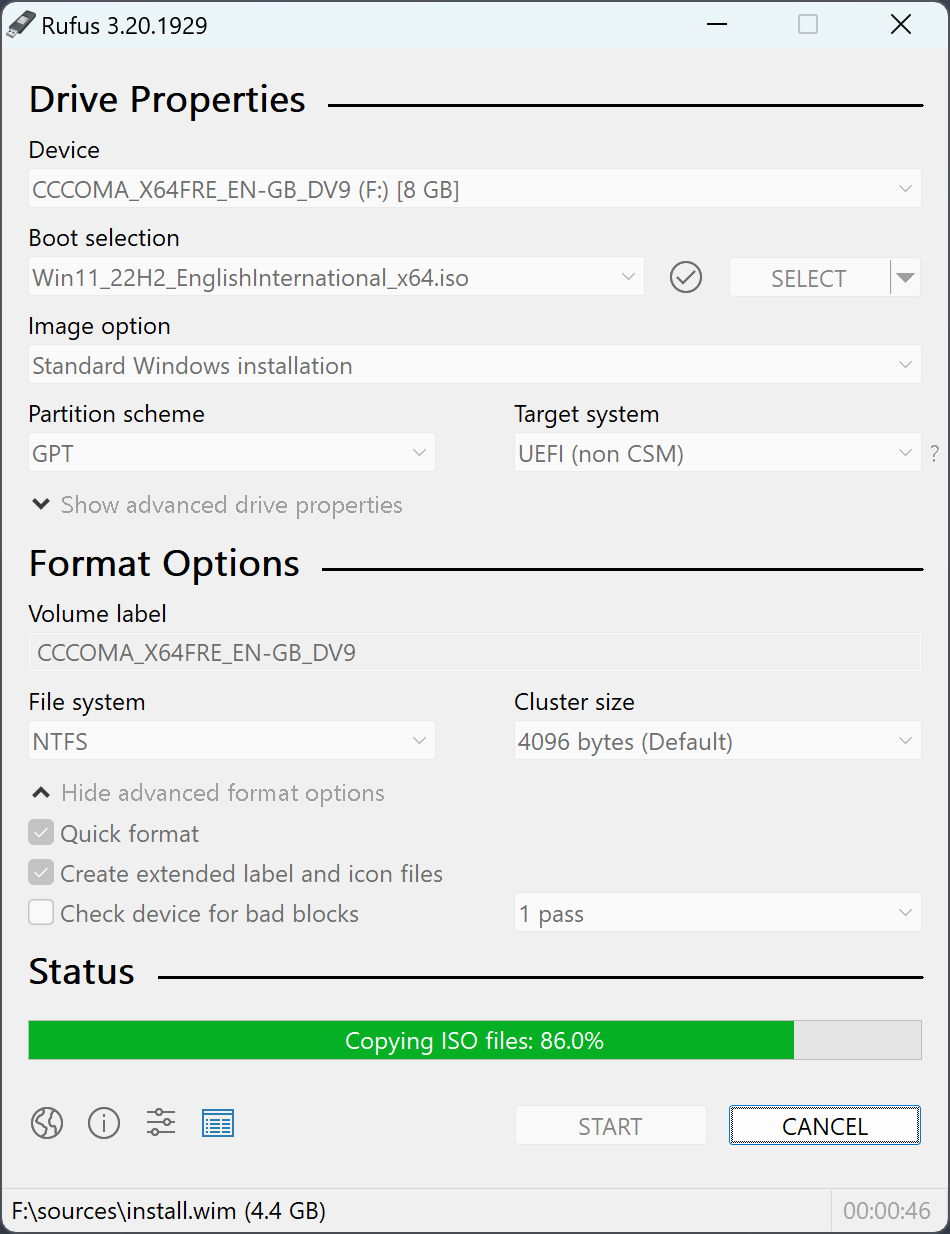
The fastest fix is to use Rufus again — but this time to format the drive as a normal storage device instead of a bootable USB.
- Download and open Rufus 4.13
- Under "Device", select your stuck USB drive
- Under "Boot selection", change to "Non bootable"
- Set File System to FAT32 (or NTFS for drives over 32 GB)
- Click START
Rufus will completely reformat the drive, removing all GPT partitions and restoring it to a normal USB storage drive. This takes less than 2 minutes.
Fix 2: DiskPart — Fix Unable to Format USB Stick After Rufus
DiskPart is a built-in Windows command-line tool that can completely wipe and rebuild any drive's partition table — including drives that Rufus has modified with GPT. This is the most reliable fix when Rufus leaves the USB unable to format.
list disk
clean
create partition primary
format fs=fat32 quick
assign
exit
⚠️ Critical: Make absolutely sure you select the correct disk number. The clean command wipes everything on the selected disk. Check the size listed next to each disk to identify your USB drive.
Fix 3: Windows Disk Management
Step-by-step via GUI
If DiskPart feels intimidating, Disk Management provides a visual interface to the same operations:
- Press Win + X → click Disk Management
- Find your USB drive in the lower pane (identify by size)
- Right-click each partition on the USB and select Delete Volume
- Once all partitions are deleted, right-click the unallocated space → New Simple Volume
- Follow the wizard, select FAT32, and complete the format
Note: Some hidden GPT partitions may not appear in Disk Management. If you can't delete all partitions, use the DiskPart method above instead.
Fix 4: Use the Windows Format Tool with Overwrite
Full format method
Sometimes a simple low-level format forces Windows to overwrite the problematic partition structure:
- Open File Explorer → right-click your USB drive
- Select Format
- Uncheck "Quick Format" — this runs a full sector-by-sector format
- Select FAT32 or NTFS as file system
- Click Start
If the Format option is greyed out in File Explorer, skip to Fix 2 (DiskPart) instead.
Fix 5: Check for Write Protection
Physical and software write protection
Some USB drives have a physical write-protection switch on the side of the drive. If this switch is in the locked position, no formatting tool can write to the drive — including Rufus and DiskPart.
- Check the side of your USB drive for a small slider switch
- If present, slide it to the unlocked position (away from "LOCK")
- Try formatting again after switching
If there's no physical switch, write protection can also be enabled via DiskPart. After running diskpart and selecting your disk, type attributes disk clear readonly to remove software write protection.
Fix 6: Third-Party Disk Tools
Last resort free tools
If all else fails, these free tools can force-format even heavily modified USB drives:
- SD Card Formatter (SD Association) — works on USB drives too, excellent at cleaning up partition issues
- MiniTool Partition Wizard Free — visual interface, can delete all partitions including hidden GPT ones
- GParted Live — boot from another USB and use GParted to wipe the problem drive completely
How to Prevent This Issue in Future
Tips before creating bootable USB
Before creating a bootable USB with Rufus, note these tips to make restoring the drive easier later:
- If you're using an MBR (not GPT) partition scheme in Rufus, Windows can format the drive normally afterward
- For UEFI bootable drives (GPT), plan to use Rufus's "Non bootable" option or DiskPart when you're done with the bootable drive
- Consider keeping a dedicated USB drive just for bootable images — you'll reformat it regularly anyway
Quick Fix Summary
- Use Rufus → Non Bootable
- DiskPart → clean
- Disk Management
- Full format (uncheck Quick)
- Check write protection
- GParted / MiniTool
Need a fresh bootable USB?
Once you've restored your USB drive, Rufus makes it bootable again in minutes.
Download Rufus Free →